


If you buy your kid's first smartphone, you fulfill the wish, but now another problem starts. You can explain things to your kids, but you can't know what they're actually doing on the device.
A cellphone can be used for homework, work-related tasks, communicating with peers, watching videos, and playing games in a single day. You can't check all of these, so you need separate, designated software to manage your child's phone.
But not all parental control apps serve the same intent. Some tools manage screen time, while others focus on websites or apps, or serve a different purpose.
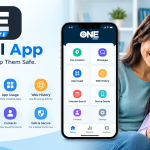
ONELite – Digital Guard is an Android-based app. It allows parents to control phone activity and supports app management for the selected apps. At the same time, it provides the following information: browsing history, location updates, contacts, calendar information, etc.
Of course, it cannot replace every type of parental control application. Its concept differs completely from other apps that offer scheduling options or detailed online activity monitoring.
Where does ONELite fit when you need an app to manage a child's phone?
ONELite Review: What Does It Actually Do?
ONELite is an Android parental control app that combines several areas of phone activity.
No single feature limits it because the user can see installed apps, supported app controls, browsing history, location updates, and other device information depending on the phone, permissions, settings, and supported features.
Hence, it focuses on understanding the activity of children rather than measuring their screen time spent on the phone.
For parents, it is especially important to distinguish these two types of applications.
In some cases, it's not necessary to ask "How long was the phone used?" It's better to say, "Which apps are being used? Or which online activity is taking place?"
Where ONELite Fits Into Screen Time Management
ONELite can play its role in managing children's screen time, but it's important to realize that this application differs from screen-time schedulers.
Thanks to app activity information, parents can understand usage while using the supported app controls for restricting certain applications.
However, ONELite doesn't offer the detailed scheduling you find in screen-time applications. This lets you schedule different allowances for different days, etc.
If you just want to understand what your child is doing on the phone, the broader activity approach is important. If you need strict time budgeting, a screen-time application is more suitable.
ONELite Features That Matter for Phone Management
There is no need to consider all the ONELite features equally. Several matter for phone management.
App Management
Installed apps allow parents to understand how the phone is used.
With ONELite, parents can review installed applications and manage supported apps. This may be necessary when a particular game, social network, or entertainment app causes problems.
App blocking is also different from viewing usage. In this case, parents can apply an established family rule to supported applications.
Activity Reports
Activity information can be helpful during a discussion of phone usage.
Rather than controlling how much your kids spend time on the screens and which games they play. parents can review what they watch through the detailed report.
However, this doesn't mean every parent should follow it. It's better to use this information to make decisions.
Browsing History
Phone management isn't limited to installed applications.
The browsing history can show another aspect of children's digital activity and help parents understand the visited websites. Thus, it fits into the broader concept of online safety.
Location Updates and Device Details
ONELite also includes features like location updates, contacts, calendar information, and device details. These features don't belong to the screen-time management. Still, they can be useful if you want more comprehensive information about your child's Android phone usage.
The frequency and availability of information depend on the internet connection of the device, permissions, and settings.
ONELite Trial and Lite Mode
Currently, ONELite works in the trial mode and, after that, in Lite Mode.
During the trial period, updates are more frequent than in Lite Mode, where updates are less frequent, and information is limited. This is the you should check before using the app for a particular purpose, because it differs depending on the chosen mode. Moreover, parents should consider current feature availability rather than assume that every function works for free.
Other Apps to Manage a Child's Phone
There is no recipe for managing a child's phone. The differences between services become clearer when you pay attention to the purposes of each service.
Qustodio: More Detailed Control Across Devices
Qustodio can be characterized by the rather wide range of parental controls. There is app and website reporting, while screen-time rules, app blocking, web filtering, and location features provide additional control over the device.
Also, Security.org testing notes the cross-platform coverage of Qustodio, including Android, iOS, Windows, Mac, and Kindle.
The main difference from ONELite is the level of control. Qustodio goes deeper into the scheduling of screen time and activity reporting, while ONELite has the Android-based approach to the activity management.
Bark: Alerts Instead of Reading Everything
Bark can be said to use another approach to the phone monitoring.
Unlike other applications that expect parents to read all the information, it finds potentially concerning content and sends notifications. The current coverage includes social platforms, texts, emails, etc., as well as other parental control features.
Thus, Bark differs from the app in that parents review activity information and manage supported applications.
Norton Family: More Focus on Internet Usage
Norton Family emphasizes how kids use the internet. Features of the famous apps include web filters, search checkups, scheduling and activity reports, and location control. The 2026 test by All About Cookies specifically noted the category-based web filtering and iPhone and iPad support.
A parent concerned primarily with inappropriate sites or searches could find web controls more useful than the large set of phone-activity records.
FamilyKeeper: Simpler Parental Control System
FamilyKeeper has a more streamlined design. As noted by All About Cookies, setup is quick, and the app offers app blocking, app time limits, web filtering, activity summaries, and location controls.
This app is less about the detailed monitoring and more about doing the daily parental control tasks without much complexity involved.
Google Family Link: App That Belongs to Google Family
Google Family Link is tightly integrated with the Google services ecosystem. Features of the app include supervised accounts, app management, and screen-time controls. The integration with Google services and Android devices would make the installation process rather simple.
The key difference between the two services is that while Family Link is tightly integrated with the Google account and device management system, ONELite has its own app and phone activity management features.
Screen Time: Focused on Time Limits
A group of apps centers on one idea: how long a child should be allowed to use the device.
Screen Time is a perfect example of such an app, and the value it provides is in features such as usage information, scheduling, and limits. This app differs from ONELite because it focuses on time rules rather than trying to cover all aspects of a kid's digital activities.
This means that Screen Time is a different type of solution. If the family rule is about bedtime, daily allowances, or time restrictions on certain apps, a time management app would be more appropriate.
Life360: Location Is Key
Life360 is another special case.
This isn't an app about parental control; it's about family location sharing and safety. According to the About Cookies, Life360 has features such as real-time location tracking, crash detection, and SOS.
If you don't care about apps, browsing, or kids' screen-time habits and just want to know where your family is, that's a different kind of solution.
Quick Comparison
|
App |
Key Feature |
Screen Time |
App Management |
Additional Features |
|
ONELite |
Phone activities on Android |
Visibility of activity |
Control of supported apps |
Browsing, location, device information |
|
Qustodio |
General parental control
|
Extensive limits and schedules
|
Yes
|
Web, reporting, location
|
|
Bark |
Online safety notifications |
Yes |
Yes |
Social media, messaging, email |
|
Norton Family |
Internet supervision |
Yes |
Yes
|
Website filters, search, location |
|
FamilyKeeper |
Lightweight phone controls |
Yes |
Yes |
Web filters, activity, location |
|
Google Family Link |
Google / Android management |
Yes |
Yes |
Accounts and app supervision
|
|
Screen Time |
Time management |
Primary focus
|
Yes
|
Scheduling and usage information
|
|
Life360
|
Family location sharing
|
Limited focus
|
Limited focus
|
Location and safety
|
The table above clearly shows the searching for the "best parental control is pointless app" is pointless. Every app has different web filters, location features, and other options.
What Features Make a Good Child Phone App?
When looking for a good app, focus on the issues, not the app itself.
When looking for the right app, focus on the issues rather than the apps. If the main concern is phone use, an app with usage reports, daily limits, or scheduling features would help. If the problem is which apps are being used, features like installed-app visibility and app blocking matter more.
- Use caution with online activity.
- Check whether the app provides web history, website filtering, or search controls.
- Find out how the app tracks your child’s location. The app's privacy policy is also important.
Read the privacy terms and conditions to understand the collected data and how it is identified. Parental monitoring apps work best when you understand the app's rules. For example, when parents notice their kids spend most time on the screens or using the specific apps. Instead of completely banning it, you need the open discussion regarding the online chores that should be addressed properly.
The same thing goes for the Internet use and other online activities. This information can help parents spot trends, start conversations about safer options, and adjust household rules if needed.
The phone-management app supports these discussions but should not be the only parenting strategy.
Conclusion.
ONELite unifies information about Android phone usage, app management, web history, and locations. Compared to the other screen applications, it is not meant for minute-by-minute time scheduling. When choosing the app to manage the child's phone, parents should check the features first. Depending on the needs, parents can control screen time limits, filters, app control, or location services.